
MapHabit allows you to create a private map for you and any members of your circle of support. Let's review how to edit these privacy settings when creating a new map:
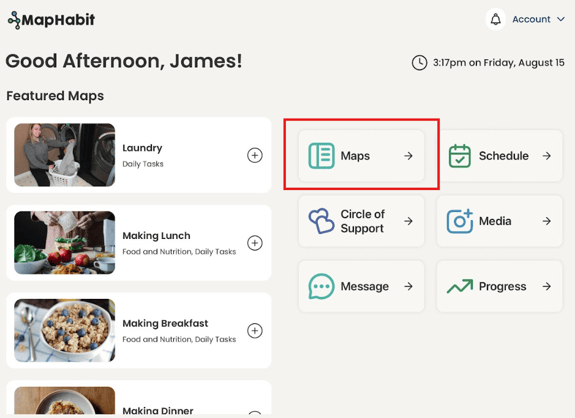
- From the home screen, tap on the Maps button on the right side of the screen
- Next, tap on the + Create Map button near the top left of the screen
- Add your cover image and title
- Tap Continue
- Tap the More button on the top row of buttons
- Select Map Settings using the button in the upper right
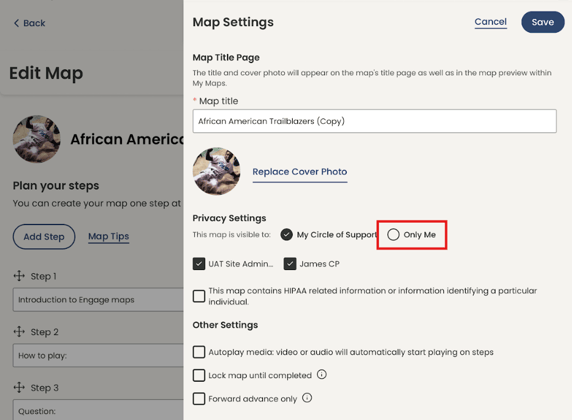
- Under Privacy Settings, select who you want the map to be visible to
- You can share it with your entire Circle of Support, only certain members, or just yourself
- To make a map private, make sure you select Only Me under Privacy Settings
- Once you have made your selections, tap Save
You can always go back and edit who is allowed to have access to the map.
- From the home screen, tap on the Maps button on the right side of the screen
- Tap the box in the top right corner of the map you want to edit to select it
- Select Edit from the blue bar at the bottom of the screen
- Once you have opened the map to edit, Select Map Settings using the button in the upper right
- Under Privacy Settings, select who you want the map to be visible to
- You can share it with your entire Circle of Support, only certain members, or just yourself
- To make a map private, make sure you select Only Me under Privacy Settings
- Once you have made your selections, tap Save
Note: If you create the map originally on your account as the support, you will have to transfer the map to the individual and then edit the privacy settings in the User View. Please refer to the following steps:
- In your support view, select the map you want to transfer using the box in the top right of its icon
- Select the individual you support from the options listed for transfer
- Tap on Transfer
- Tap on Account on the top right of the screen
- Tap on Support Summary
- Select the person you just transferred the map to from the available options
- Once you are viewing their account, Tap on Maps button on the right side of the screen
- Tap the box in the top right corner of the map you want to edit to select it
- Select Edit from the blue bar at the bottom of the screen
- Under Privacy Settings, select who you want the map to be visible to
- You can share it with your entire Circle of Support, only certain members, or just yourself
- To make a map private to them, make sure you select only the person you support under Privacy Settings
- Once you have made your selections, tap Save