
Introduction
MapHabit is designed to help individuals build habits and independence. The circle of support is a feature used to create and connect a group of people who can help with scheduling and supporting one or more individuals while using the app.
In the latest version of the MapHabit app, you are able to add and manage members of your circle of support. This article will cover how to access and use this feature within the MapHabit app. Note: Adding and managing members of an individual's circle of support can only be done when logged in as the Primary Individual.
This article has three sections:
- Locating the Circle of Support in the App
- Adding a New Member to the Circle of Support
- Managing Your Circle of Support
Part 1 - Locating the Circle of Support in the App
While the circle of support may be viewed by any member of it, the Primary Individual's account is the only one capable of adding new members or managing existing members through the app.
In order to add or manage members of the circle of support, you must first make sure you have logged in to the MapHabit app using the Primary Individual's username and password.
Once you have logged in, you may locate the circle of support in quick navigation section located on the right side of the app's home screen using the button labeled Circle of Support:
From here, tap the button and it will take you into the circle of support to view existing members:
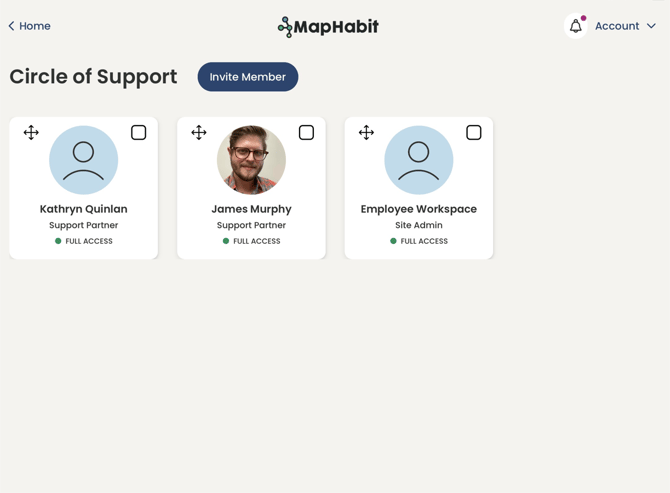
Existing members will be shown on this screen. Their picture (if present) will be shown in a round icon. Below the icon, you will see their name, their role, and the level of access they currently have to the Primary Individual's account.
Part 2 - Adding a New Member to the Circle of Support
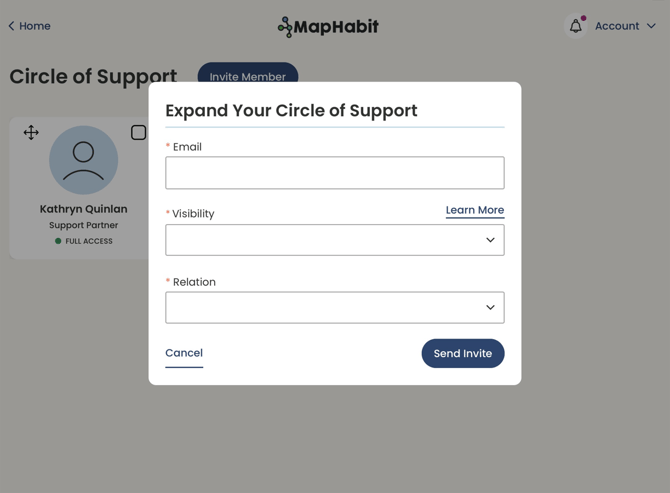
To add a new member to the circle of support, first tap the blue button labeled Invite Member located near the top of the screen. After tapping the button, a new window should appear that will ask you for information about the person you want to add.
This will include the following:
- The person's email
- The desired level of visibility and access to the Primary Individual's account
- The relation of the new person to the Primary Individual
.png?width=670&height=491&name=mceclip0%20(1).png)
When choosing the desired level of visibility, you will have three options: View Only, Limited Access, and Full Access. You can tap the 'Learn More' link for an illustration of what each level of access allows. This can be modified after selection which will be covered in part three of this article.
.png?width=578&height=395&name=mceclip0%20(2).png)
Once you have filled out this information, you can tap the blue Send Invite button. From here, an invitation will be sent to the email entered in the form. The person will then be able to accept the invitation, and fill out their profile. They will then be able to log in to the app from their own device.
If you have sent an invitation to a person, and they have not received it, you may tap the checkbox on their tile and then tap the Resend Invitation button to send a new email. You may also revoke the invitation entirely if desired using the same checkbox and context menu.
Part 3 - Managing Your Circle of Support
At any time after adding someone to the circle of support they can have their access changed or be totally removed from the circle if needed. To do this, you begin the same way by accessing the circle of support from the app's home screen.
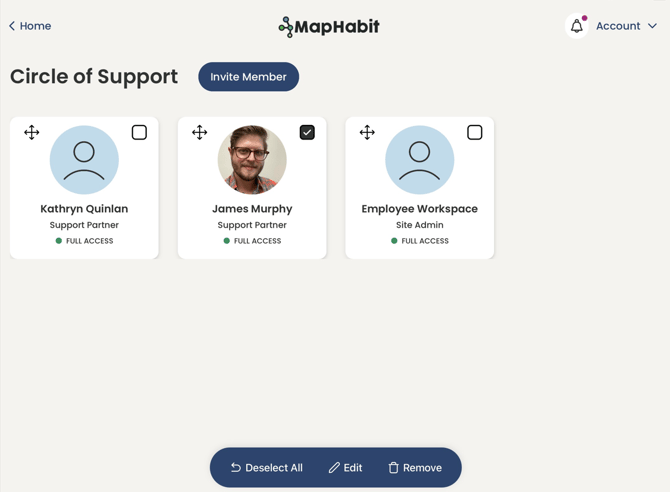
Next, tap the empty checkbox in the upper right of a member's tile. This will bring up a blue context menu at the bottom of the screen with several options: Edit, Remove, and Deselect All:
If you want to edit the visibility of a circle member, tap the Edit button. This will allow you to change their access based on how it is set using the dropdown menu. Once you're done you can tap the blue Save button at the bottom right of the window.
.png?width=670&height=494&name=mceclip1%20(1).png)
You can also remove members completely using the blue Remove button.
Members may be rearranged freely on the circle of support screen by pressing and holding on the four arrow icon  in the top right of a member's tile.